




A customer says the box was empty. Another says they got the wrong item. Without proof, you often lose the money, and your seller rating takes a hit. This is the problem Flipkart VMS is built to solve.
VMS here means Video Management System. It records how you pack each order, so you have video proof when a dispute comes in. According to WareIQ, sellers also need it to stay eligible for Flipkart’s Seller Protection Fund (SPF).
In this guide, you will learn what the system does and which 5 tools and setups help you use it well. We also point out real limits, because no tool fixes everything. Rules and prices change, so always confirm details on the official Flipkart seller portal.
What Is Flipkart VMS?
Flipkart VMS records your packing process and shares the footage with Flipkart. If a buyer claims something was missing or wrong, your video shows what you actually sent. It does not replace good packing habits. It only proves them.
Note: this is not “vendor management” software. It is about video.
1. Flipkart’s Official VMS Portal
This is the official system from Flipkart. It records your packing and shares the footage with Flipkart, so you can show proof when a customer disputes an order.
- Best for: Any Flipkart seller who packs orders themselves.
- Key features:
- Automatic packing recording
- Separate user accounts for packers, with one feed per camera
- Label scanning, so order details show in the video
- Free limit: The sources I checked do not list a fee. Confirm cost and access with Flipkart seller support.
- Pros: It is the official route. It gives clear proof of correct packing.
- Cons: It runs on Windows only. You need a camera and barcode scanner first.
- Pro tip: Get your login from Flipkart support first, then test with a few dummy orders.
2. UniCapture (Unicommerce)
UniCapture is a recording tool from Unicommerce. It connects to the Flipkart and Myntra VMS through an API, so one recording can run on both sides.
- Best for: Sellers who already manage orders in Uniware.
- Key features:
- UniCapture controls when recording starts and stops
- Recordings are shared with Flipkart automatically after each session
- Recordings are saved in a folder you map during setup
- Free limit: Pricing is not stated in the sources. You also need an API key from your Flipkart account manager.
- Pros: Less double work. Recordings reach Flipkart without manual upload.
- Cons: Only useful if you use Uniware. Setup has several steps.
- Pro tip: Stay logged in to Flipkart in the background before you start recording, as Unicommerce advises.
3. EasyVMS (EasyEcom)
EasyVMS is part of EasyEcom. It tags packing and return videos to the order ID and can export dispute packs for marketplace claims like SAFE-T, SPF and PPMP.
- Best for: Brands that sell on several marketplaces and want one video system.
- Key features:
- Video linked to each order ID
- Claim-ready dispute packs
- Works inside EasyEcom’s warehouse tools
- Free limit: EasyEcom offers a free trial. Check their site for paid plans.
- Pros: Packing and return video in one place. Easy search by order ID.
- Cons: The “90% dispute win rate” is the company’s own claim, not independent proof. Confirm with Flipkart that it meets the VMS rules for your account.
- Pro tip: Use the trial on real orders for a week. Check how fast you can find one video.
4. WareIQ Returns QC App
This tool focuses on returns. When a return reaches the fulfilment centre, it records timestamped video and links it to the order ID.
- Best for: Sellers who keep losing return claims, or who already use WareIQ for fulfilment.
- Key features:
- Timestamped video linked to the order
- AI-based grading (damaged, wrong item, missing parts)
- Cloud storage for quick access when filing a claim
- Free limit: No free plan is mentioned in the sources. Contact WareIQ for pricing.
- Pros: It covers the return side, which packing video alone does not. Evidence is easy to find later.
- Cons: “100% approval” is a marketing claim, and no tool can guarantee that. It is built around WareIQ’s own services.
- Pro tip: Film the parcel being opened, with the label and order ID clear in the first seconds.
5. Camera and Scanner Setup
This is not software, but the VMS does not work well without it. WareIQ lists a Windows machine, stable internet, an IP or USB camera and a barcode scanner as the basics.
- Best for: New sellers building their first packing station.
- Key features:
- Camera placed about 2-3 feet above the packing desk
- Barcode scanner for shipping labels
- Stable internet connection
- Free limit: Not free. Cost depends on what you buy, so start with one station.
- Pros: Fixes most “blurry video” problems. Easy to copy to more stations later.
- Cons: Needs desk space and staff discipline. Poor lighting still hurts footage.
- Pro tip: Test the lighting during your busiest hour, and keep the desk tidy.
Comparison Table
| Tool | Best For | Features | Limit |
|---|---|---|---|
| Official VMS portal | All Flipkart sellers | Auto recording, packer accounts, label scan | Windows only; confirm fee |
| UniCapture | Uniware users | API link, auto sharing | Needs API key and Uniware |
| EasyVMS | Multi-marketplace brands | Order-tagged video, dispute packs | Confirm it meets Flipkart rules |
| WareIQ Returns QC | Return claim problems | Timestamped video, AI grading | No claim guarantee |
| Camera + scanner | New packing stations | Clear view, label scanning | Hardware cost |
How to Use Flipkart VMS Tools Together
Here is a simple workflow for a small seller:
- Set up the base. Buy a camera and barcode scanner. Put the camera above the packing desk.
- Get access. Ask Flipkart support for your VMS login. Create accounts for each packer.
- Pick one extra tool only if needed. If you use Uniware, add UniCapture. If you sell on many marketplaces, test EasyVMS.
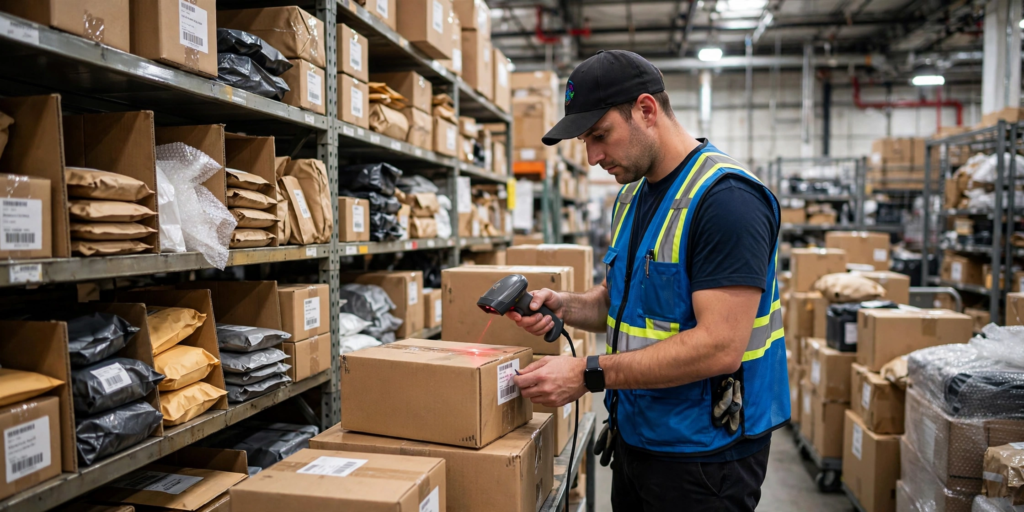
- Pack with a routine. Start recording, scan the label, show the item and pack it. Stop recording.
- Handle returns. Open returned parcels on camera too. A tool like WareIQ Returns QC can help here.
- Review weekly. Open a few videos. Check the angle, light and label visibility.
- File claims fast. When a dispute arrives, find the video by order ID and follow Flipkart’s claim steps.
Start small with one station. Add more only after the routine works.
3 Mistakes to Avoid
- Hiding the label. If the shipping label or order ID is not visible, the video is much less useful as proof.
- Never checking footage. A camera can be knocked out of position. Review a few recordings each week.
- Trusting big promises. No tool can promise a 100% claim win. Confirm with Flipkart that your setup meets its rules.
FAQ
1. What is Flipkart VMS? It is Flipkart’s Video Management System. It records your packing process and shares the footage with Flipkart. Sellers use it as proof of correct packing when a customer reports a missing or wrong item.
2. Is VMS mandatory for Flipkart sellers? WareIQ says sellers must adopt it to stay eligible for the Seller Protection Fund. Rules can change, so please check the official Flipkart seller portal or support for the current policy on your account.
3. What do I need to set up VMS? You need a Windows machine, a stable internet connection, an IP or USB camera and a barcode scanner. You also need login details from Flipkart support. Then you create packer accounts and set up a feed for each camera.
4. Can I use a third-party video tool? Some can. UniCapture connects to the VMS through an API, using a key from your Flipkart account manager. For any other tool, ask Flipkart whether it is accepted before you depend on it.
5. Does VMS help with returns? Packing video proves what you sent out. For returns, you also need video of the parcel being opened. Tools like EasyVMS and WareIQ Returns QC are built for that, but claim outcomes still depend on Flipkart’s review.
Conclusion
Flipkart VMS gives you clear proof of how each order was packed, and it may decide whether a dispute goes your way. Start with the official portal and a good camera setup. Add a third-party tool only if it fits your workflow, and confirm it with Flipkart first. Check a few recordings every week. Your next step: contact Flipkart seller support today, ask about VMS access for your account, and set up one packing station this week.